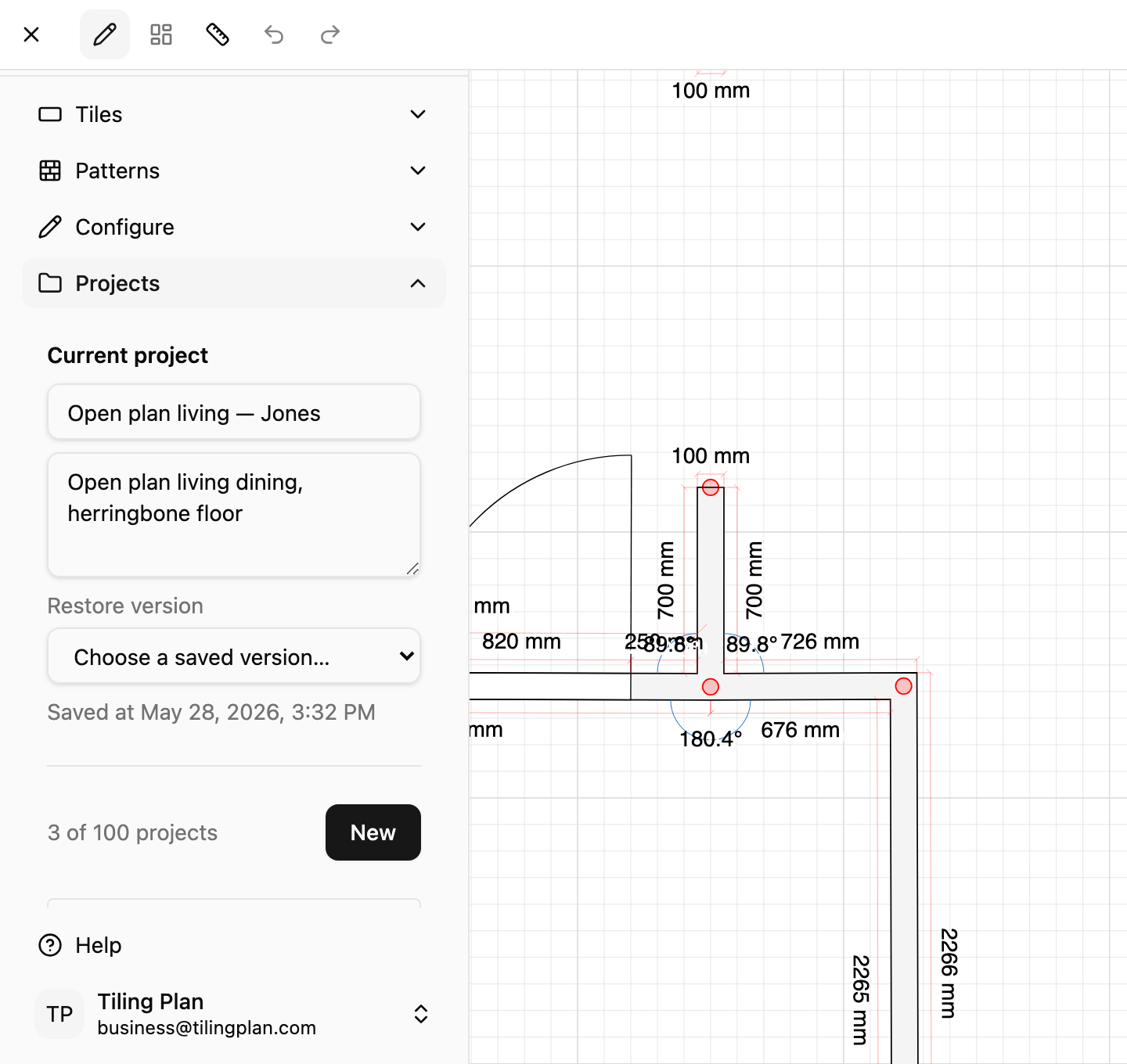
Projects & cloud save
An overview of the Projects panel — naming jobs, working offline, and restoring earlier versions (on Business tier).
4 min read · 3 steps
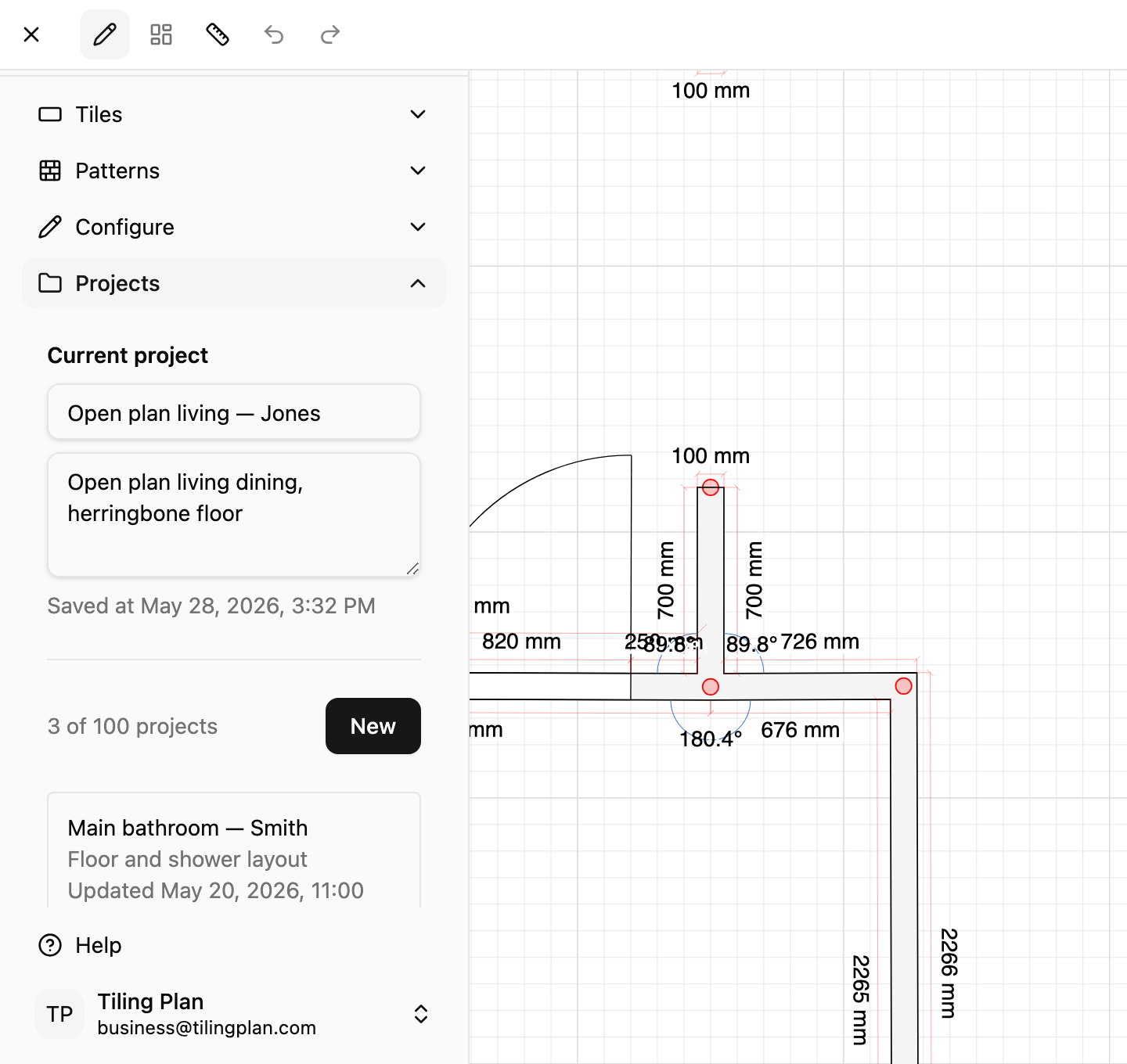
Projects list and current job
Open Projects in the sidebar. New creates a cloud project; your saved jobs appear in the list below. You can edit the current project name and description in the text boxes, everything autosaves while you work. Click Open on any row to switch jobs.
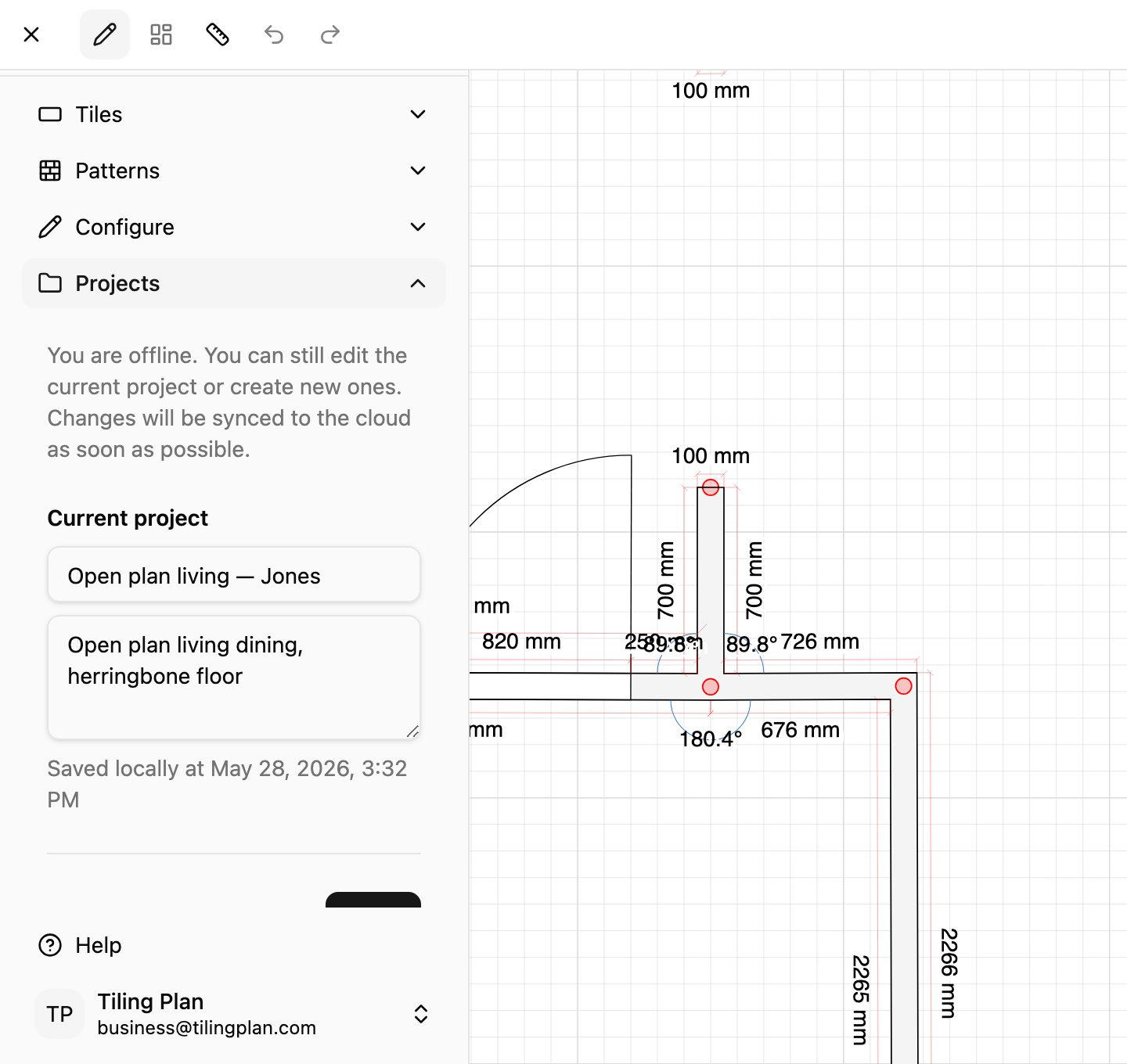
Offline mode
You can still edit and create projects even if you lose connection. Changes queue under Pending offline changes and sync when you are back online. The current project may show Saved locally until sync completes.
Version control
The Business tier has version control - you can roll back to an earlier autosaved snapshot of any project. Pick a timestamp from the list — useful after a big layout change you want to undo.